Opening a new class is one of those jobs that looks small on the calendar and eats an evening. Someone has to pick the dates and check the teacher is free, write a plan for every session, find or write practice questions, and decide what homework goes home after which lesson. Most schools end up with a class that has a name, a start date and nothing else until the first week is already running.
AI class setup does that first draft for you. You describe the class in a sentence, Schoolory drafts all four parts in about a minute, and you check every line before anything is saved.
Step 1: describe the class in your own words
Open Classes, click New class, then Set up with AI. Write who the class is for, the level, the goal and when it meets, for example "IELTS 5.5 for working adults, Monday and Wednesday evenings, 8 weeks".
You can write in any language. A Vietnamese description gives a Vietnamese roadmap, a Thai one gives Thai lessons, and so on.
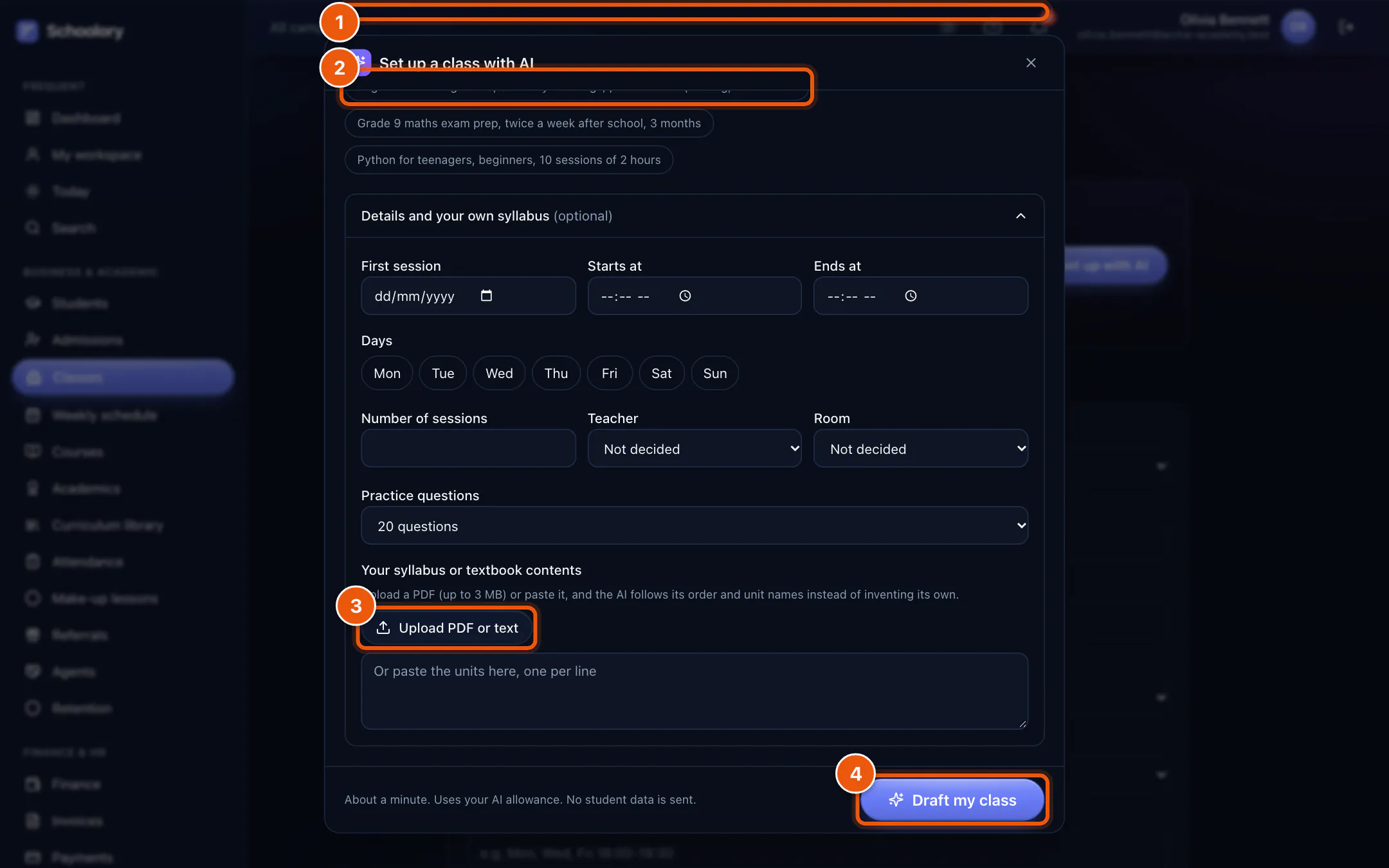
Two optional extras make the draft fit your school better:
- Fixed details. If you already know the first session, the days and times, the number of sessions, the teacher or the room, add them and the AI uses them exactly.
- Your own syllabus. Upload your course outline or a textbook's contents page (PDF or text) and the roadmap follows its units and order instead of inventing its own.
Step 2: watch each part being written
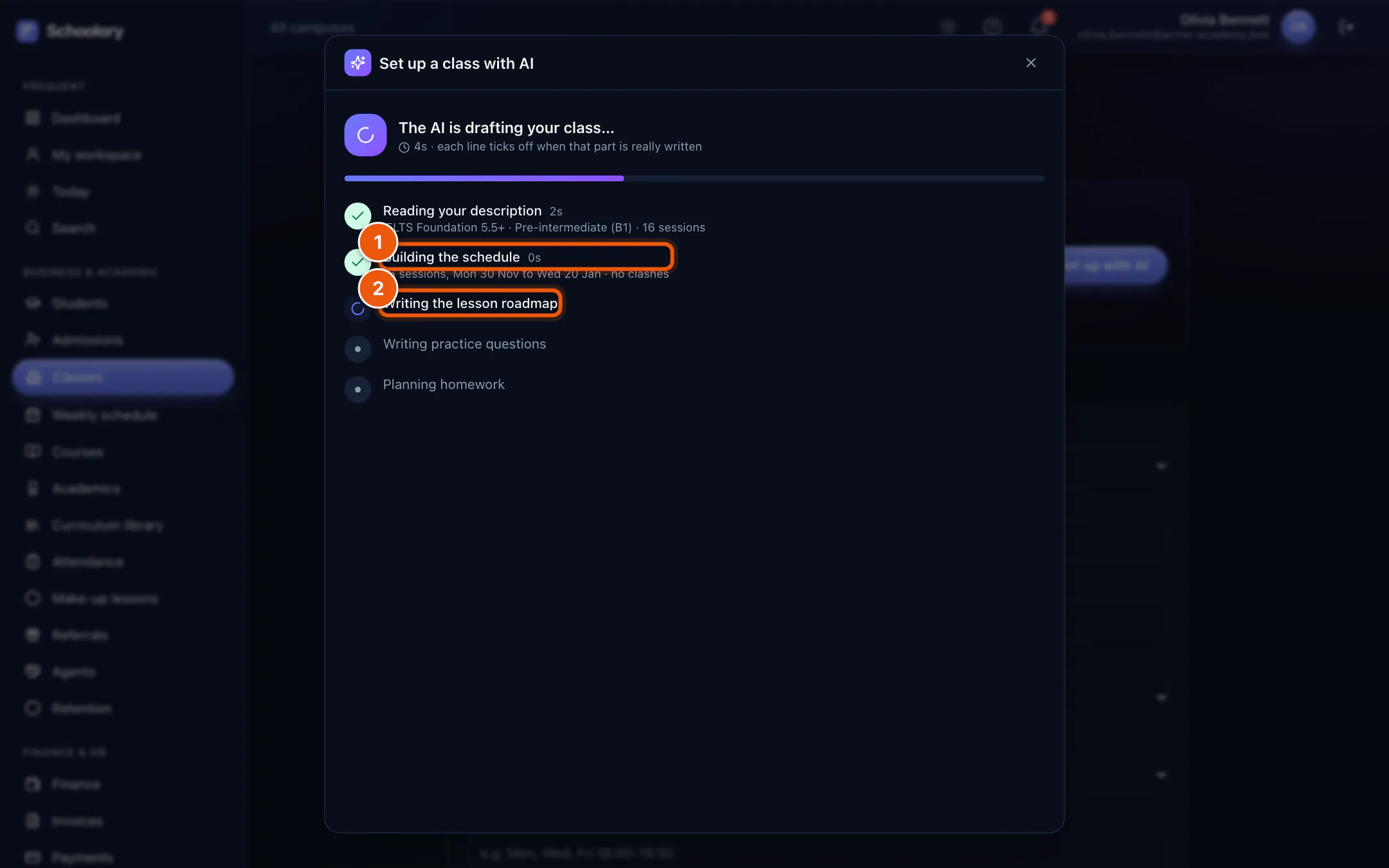
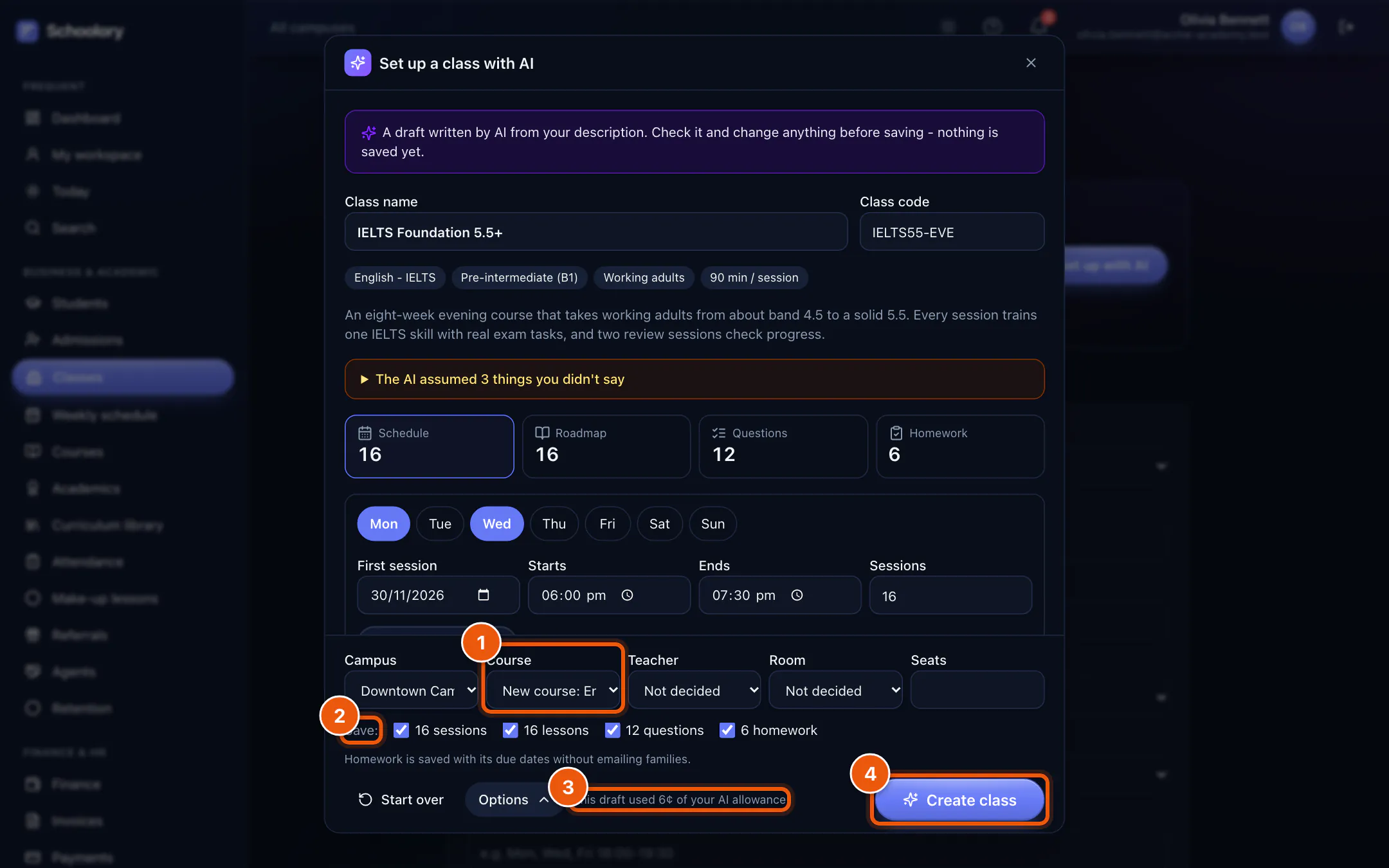
The AI works through five parts: reading your description, building the schedule, writing the lesson roadmap, then the practice questions and the homework at the same time. Each line ticks off only when that part is really finished, so the progress you see is the real progress.
Step 3: check the schedule, with clashes already found
Dates are worked out by Schoolory, not guessed by the AI, and checked against your real timetable. If the teacher already teaches another class at that time, or the room is booked, the session is marked in red with the class it clashes with. You find out now, not on the first Monday.
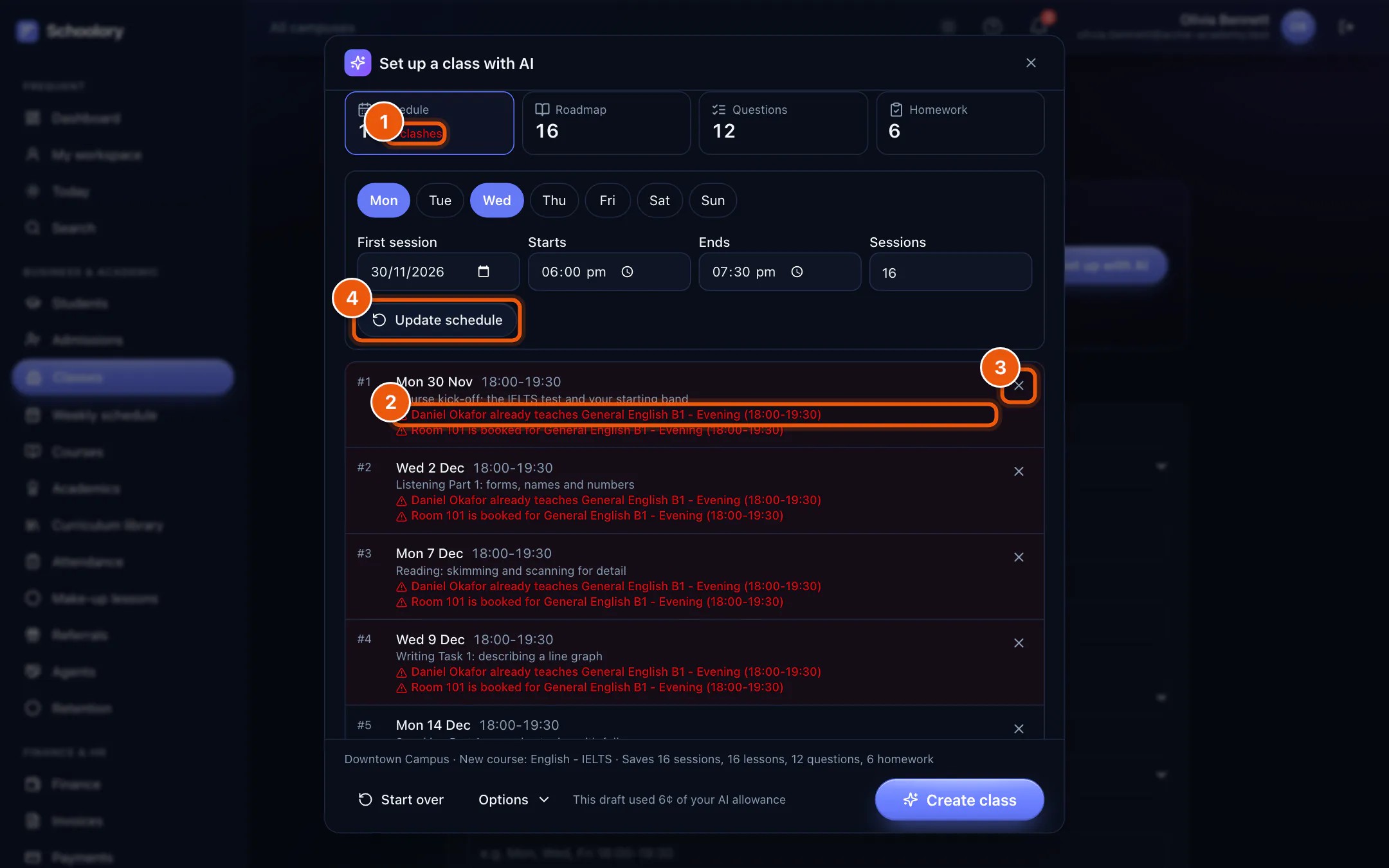
Change the days, times or number of sessions and click Update schedule. Press × on a public holiday and that session moves to the next free day.
The AI also tells you what it had to assume, such as the session length or the start time, so nothing it guessed is hidden.
Step 4: read and edit the roadmap
There is one lesson for every session. Each lesson has a focus, two or three objectives, timed activities that add up to the session length, the materials you need and a tip for the teacher. Open any lesson to change a line.
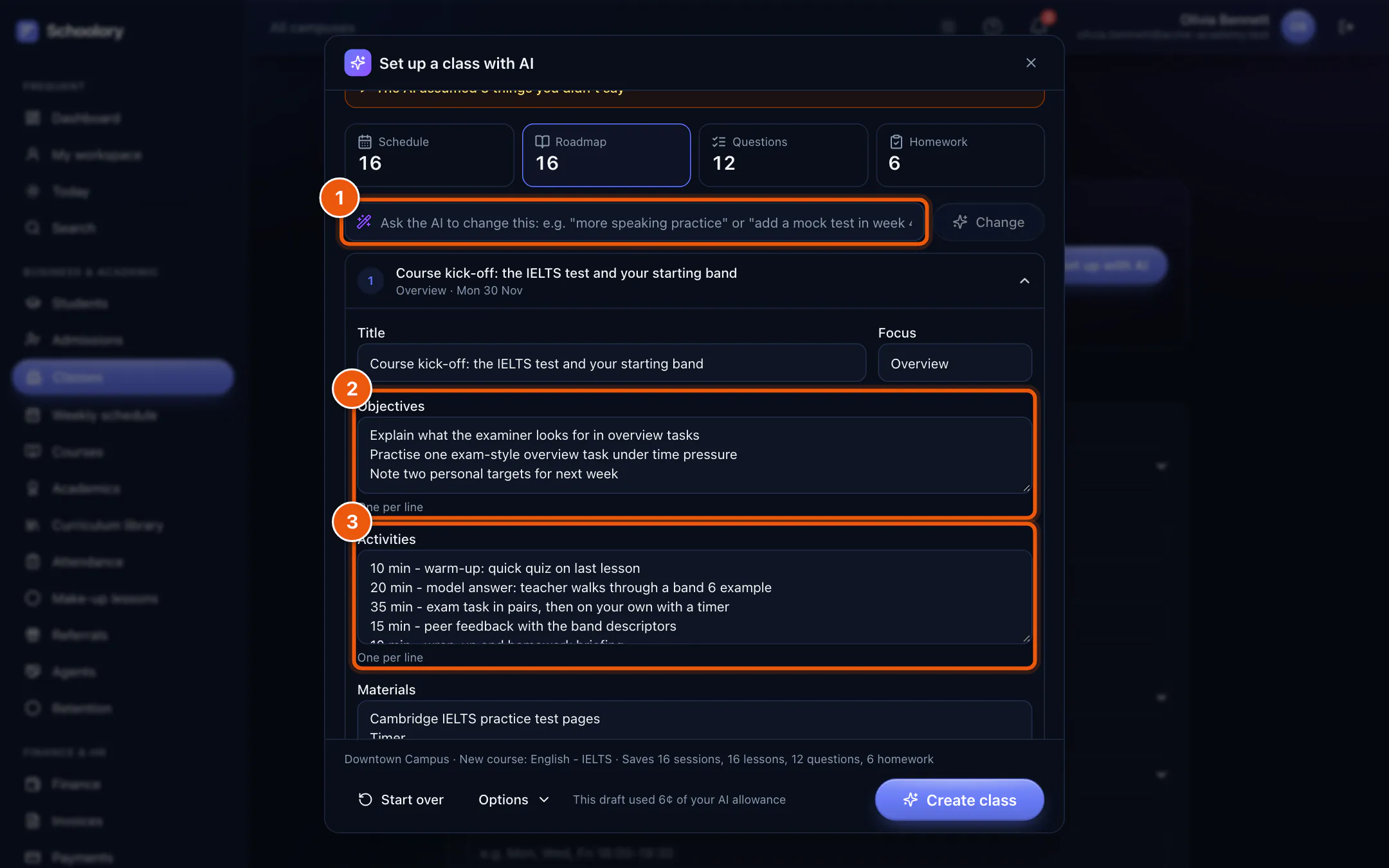
If you want to change a whole section, you don't have to edit line by line. Type what you want in plain words, such as "more speaking practice" or "add a mock test in week 4", and the AI rewrites that section.
The Questions and Homework tabs work the same way. Questions come with the answer, a short explanation, the lesson they belong to and a difficulty. Homework comes with the lesson it follows and a due date taken from the schedule.
Step 5: save it all in one click, or undo it
Choose the campus, an existing course or a new one, the teacher and room, untick anything you don't want, and click Create class. Schoolory creates the class, its sessions with each lesson as the topic, the course lessons, the homework and a question bank in one go. Homework is saved quietly, without emailing families eight assignments on day one.
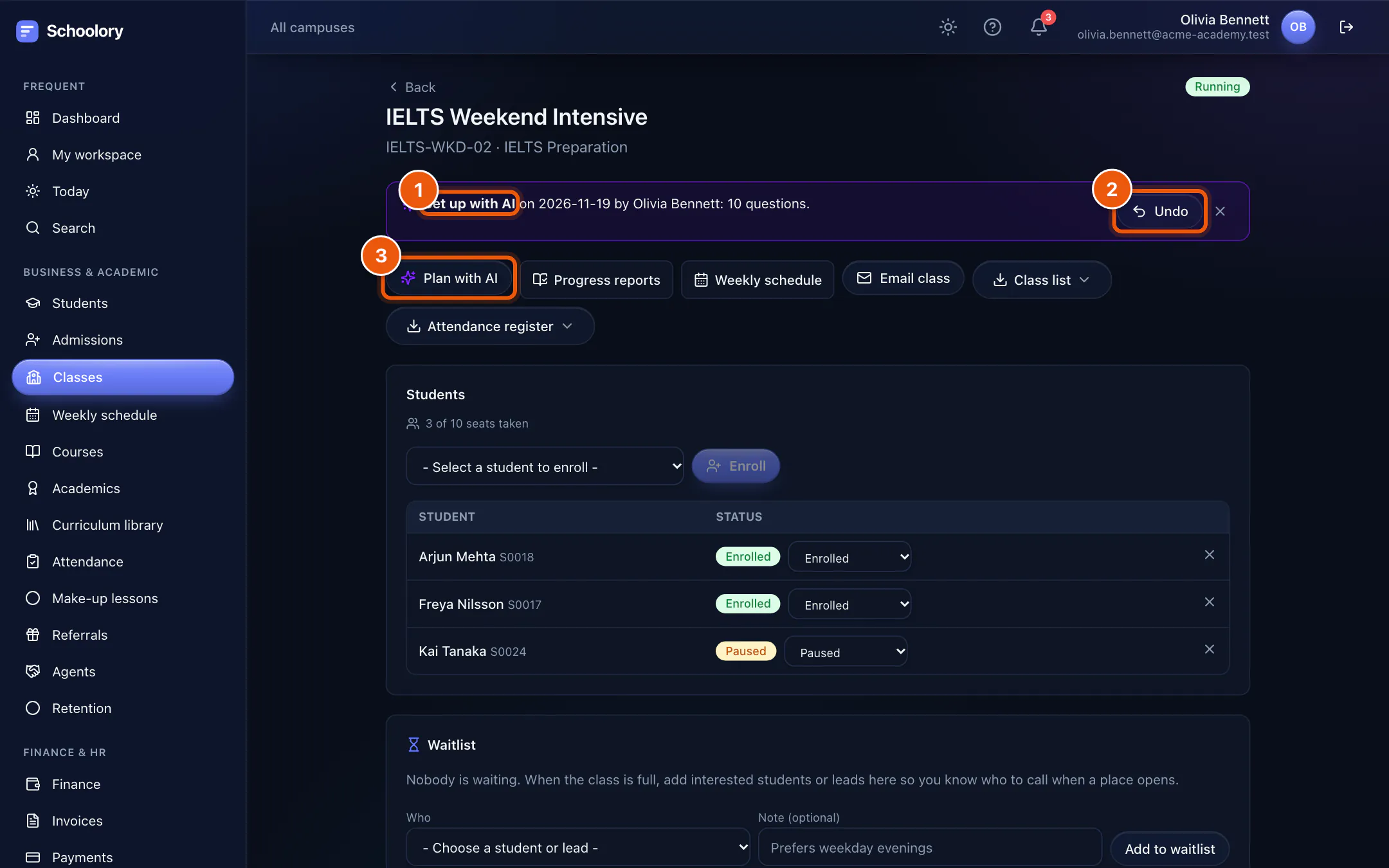
Changed your mind? A banner on the class page shows what the AI added, with an Undo button. It removes exactly what the AI created and puts back anything it changed, until attendance is taken.
Already have the class? Plan it with AI
Every class page has a Plan with AI button. If the class already has upcoming sessions, the AI writes one lesson for each, and saving puts the lesson titles on those sessions while the dates stay exactly as they are.
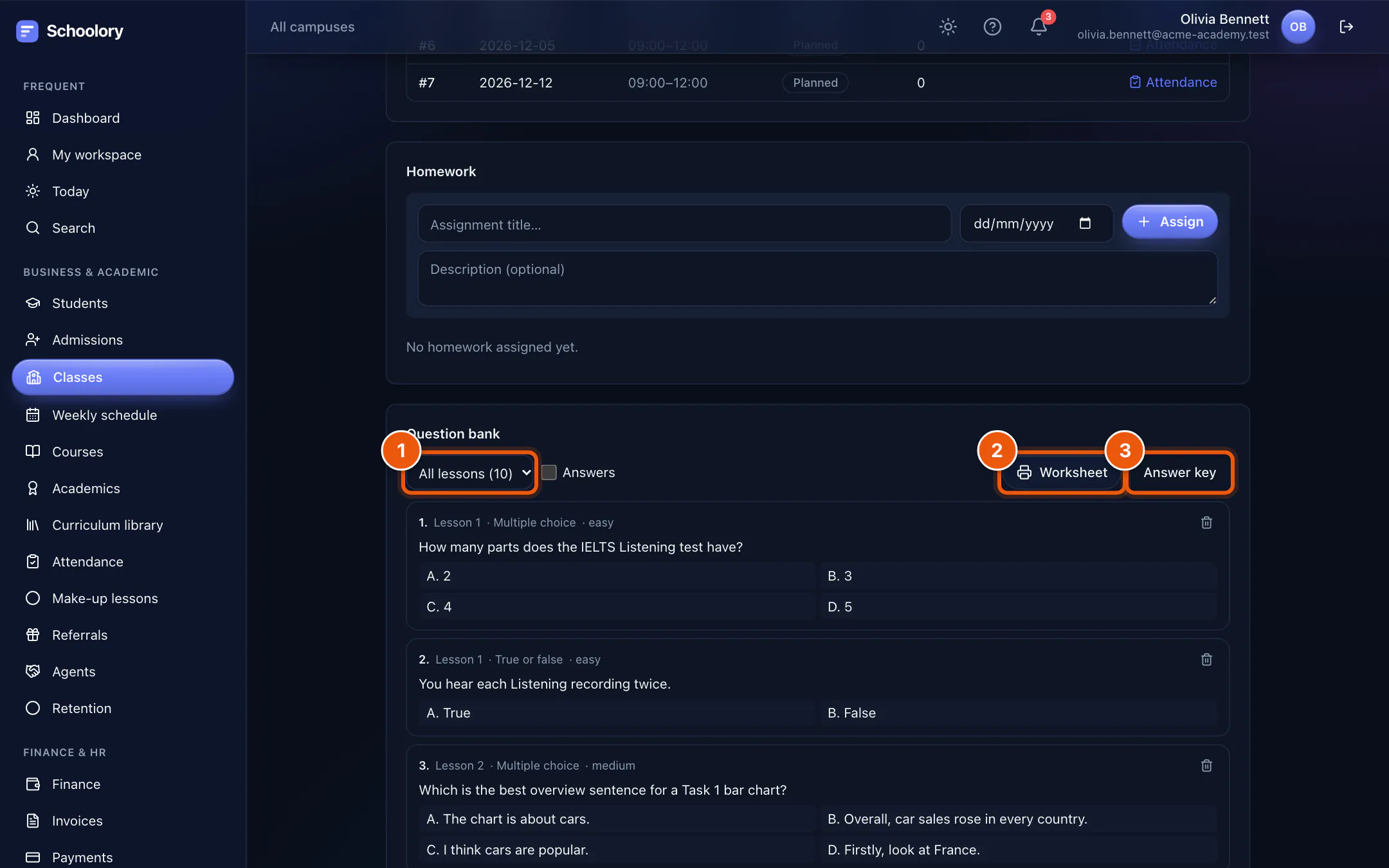
The saved questions live in the class's Question bank. Filter by lesson and print a worksheet for students, or the answer key for the teacher.
What it costs, and what it never does
- Each draft shows what it cost from your plan's AI allowance, usually a few cents.
- AI is part of the Growth and Scale plans, or works on any plan with your own Anthropic key. It is off until an owner turns it on.
- No student data is sent. The AI sees your description, the class and course names, session times and any syllabus you upload.
- Nothing reaches students or families on its own. The draft is yours to check and change.
The step-by-step guide with every button is in the help center: Set up a class with AI. Or try the interactive demo with sample data first.
