Most "AI-powered" school software means a chatbot in the corner. We took a narrower view: AI should do the first draft of jobs staff already do every week, from records the school already has, and a person should always decide what happens next.
This is the complete list of what AI does in Schoolory today, where to find each part, and the rules it follows.
Setting up a class
The newest and biggest one. Describe a class in a sentence, such as "IELTS 5.5 for working adults, Monday and Wednesday evenings, 8 weeks", and in about a minute you get:
- a dated schedule, checked against your real teacher and room bookings, with clashes marked;
- a lesson for every session, with objectives, timed activities and materials;
- practice questions with answers and explanations;
- homework with due dates.
You edit any line, ask for changes in plain words, then save it all in one click, and undo it in one click until attendance is taken.
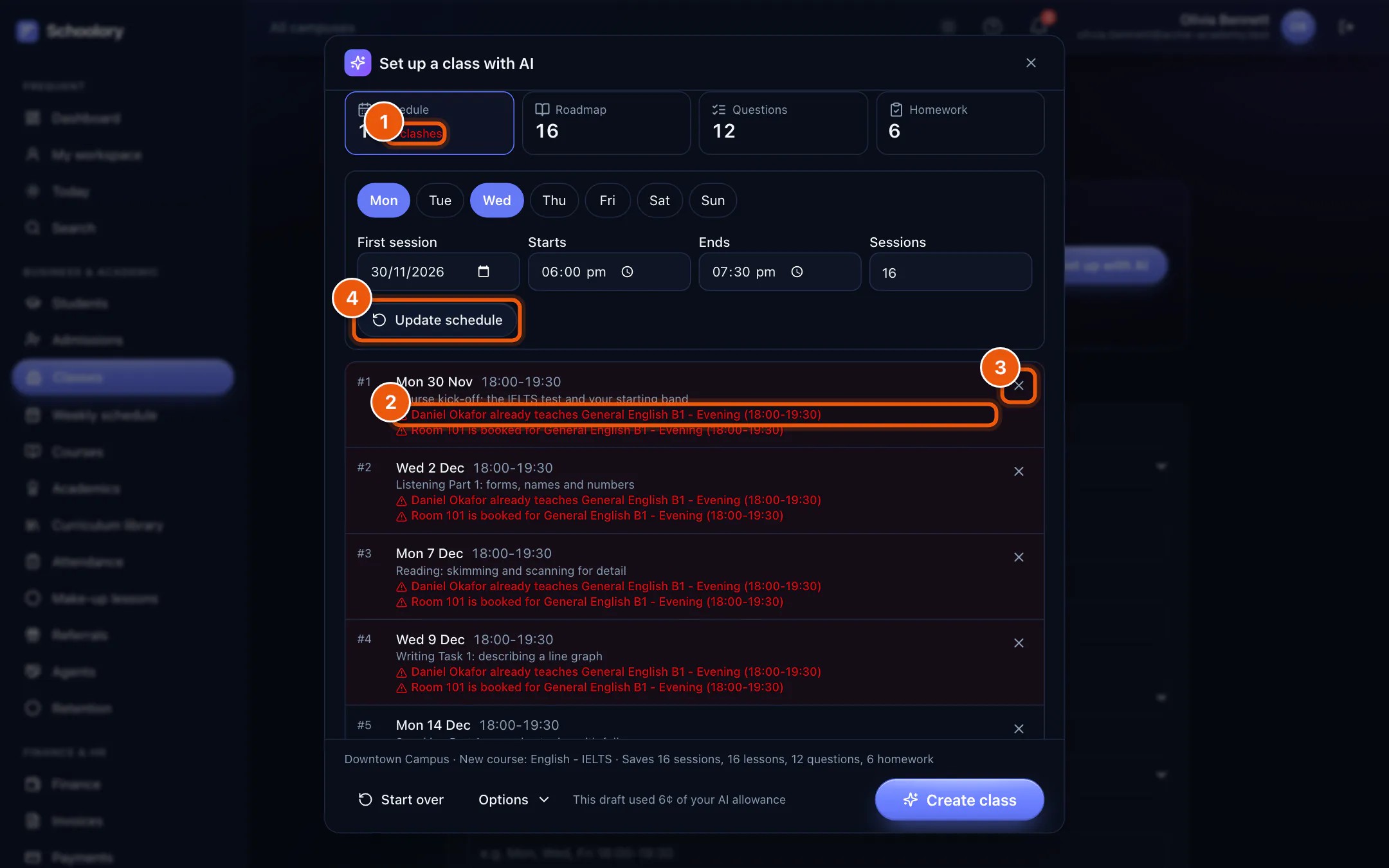
The full walkthrough is in From one sentence to a ready class.
Knowing which students are drifting
On a student's page, Analyze with AI reads their attendance, enrollments and balance and writes a short overview: a risk level, the signals behind it and what to do next. Every statement comes from the record, and it never invents an event.
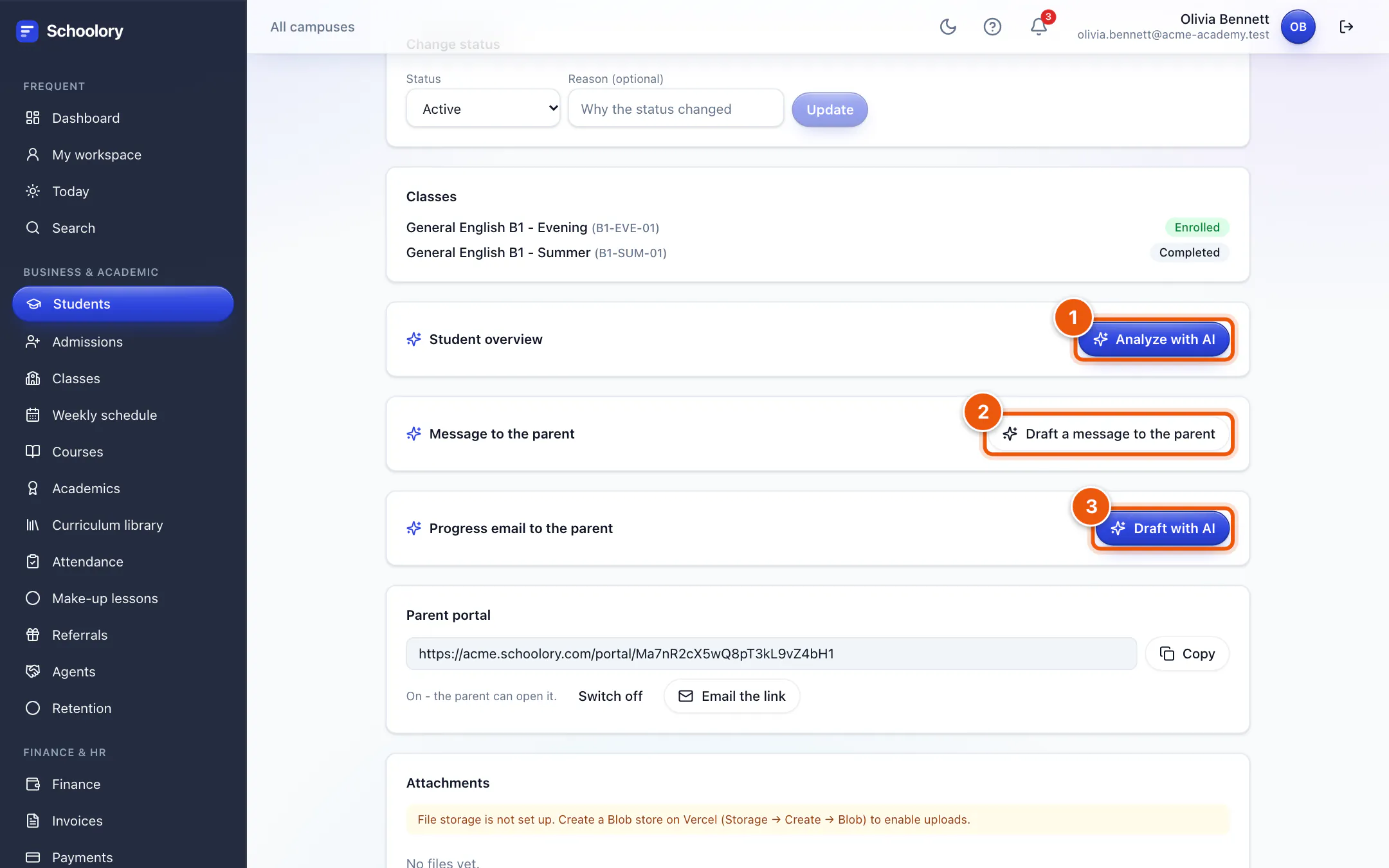
If you want this without clicking student by student, the AI drop-out risk alerts job on the Automation page ranks students at risk and suggests one action for each. It is for staff only and off by default.
Writing to parents
Three places save the most typing:
- A note to the parent on the student page, based on recent attendance, ready to copy.
- A progress email you can edit and send from the same panel.
- Progress report comments. On a class's progress reports page, AI drafts the teacher's comment for each report.
Checking a whole class
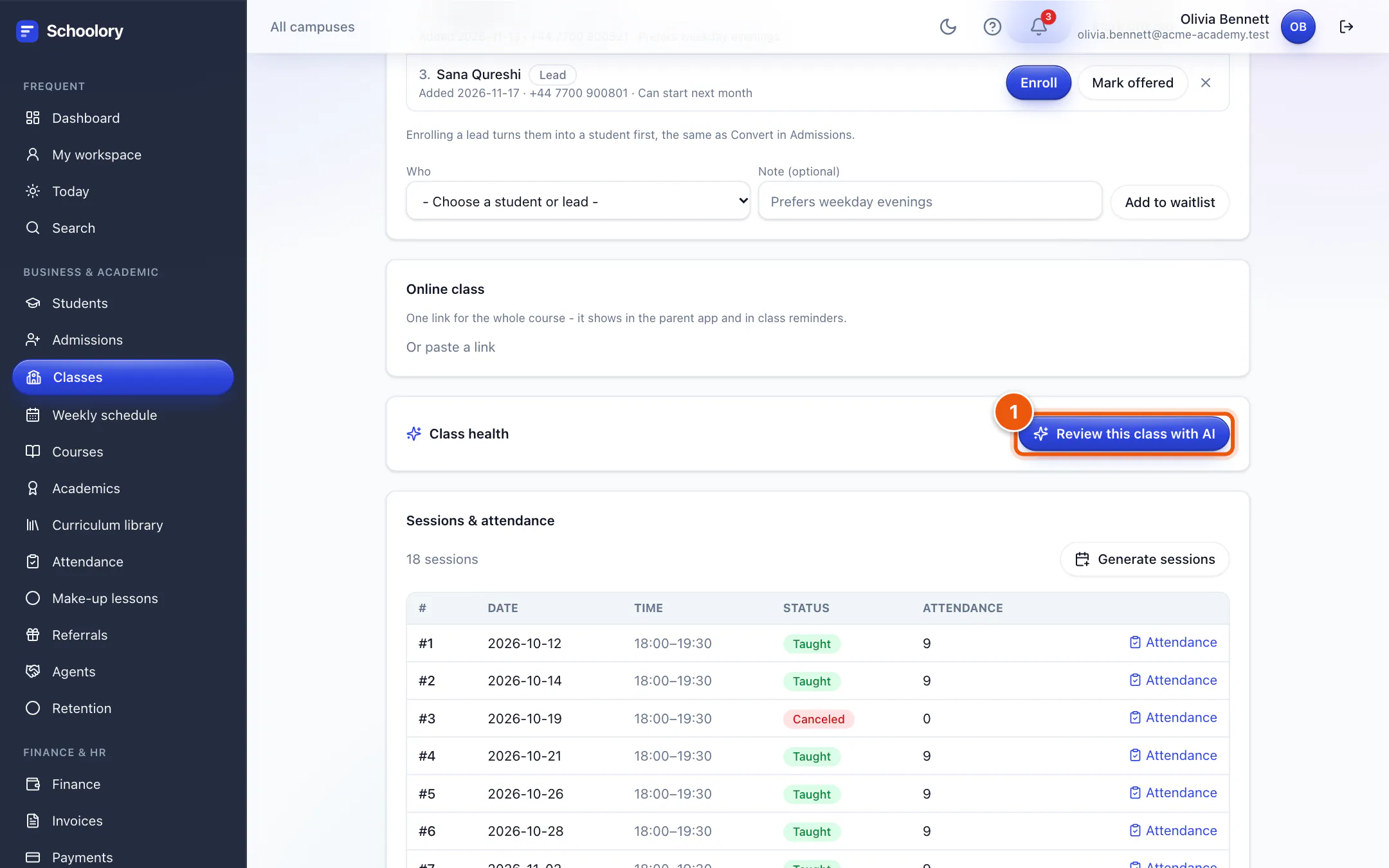
On a class page, Review this class with AI reads enrollment, attendance and homework and gives the class a label (Healthy, Watch or At risk), the issues it found and what to do about them.
Following up with new enquiries
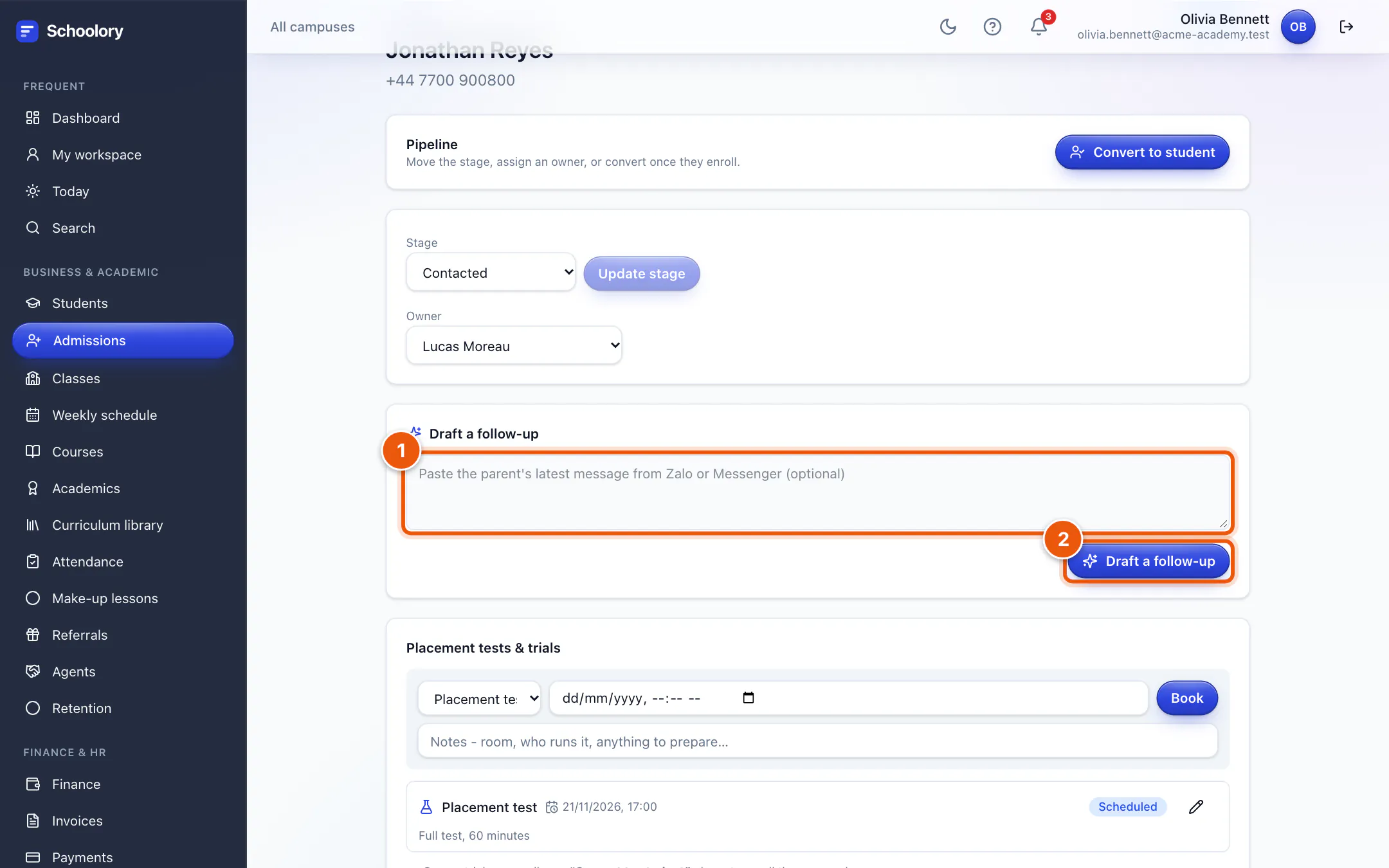
On a lead's page, paste the parent's latest message and click Draft a follow-up. You get a short chat message and an email that answer what the parent actually asked, each with a copy button. You still press send.
Emails and numbers
- On Communications, describe what an email is for and AI fills in the subject and body for you to edit.
- On Reports, Ask about your numbers answers questions about the figures on that page.
For families
When AI is on, the family app has an Assistant that answers a parent's questions about their own child, using that child's attendance, tuition and reports. It cannot see any other family's data.
What it costs
Open AI usage in the sidebar to see this month's requests and cost, broken down by feature.
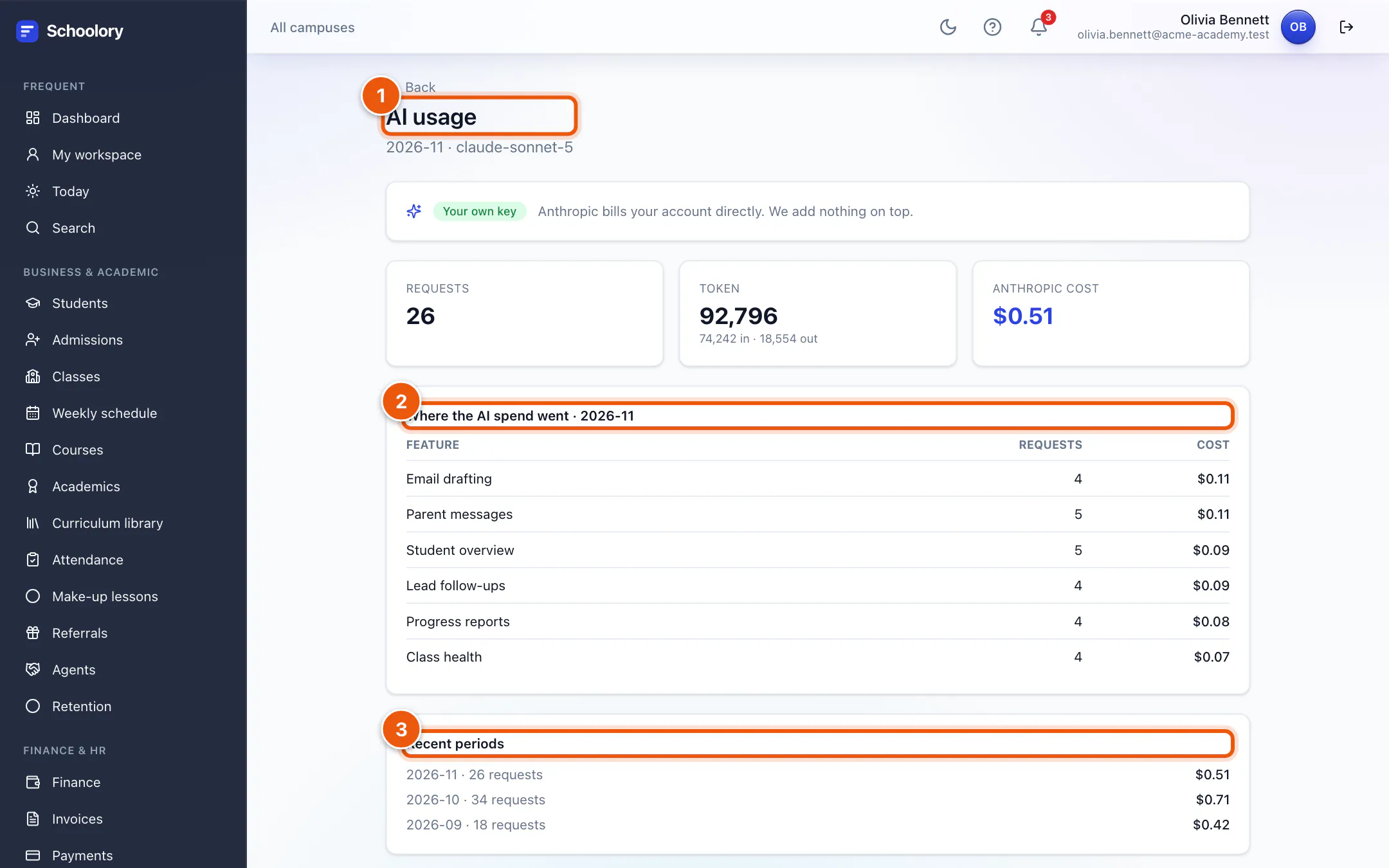
On the Growth and Scale plans AI uses the allowance included in your plan and pauses if it runs out. On any plan you can paste your own Anthropic key and be billed by Anthropic directly.
The rules it follows
- Off until you turn it on. An owner switches it on in Settings. While it is off, no student or class data leaves your workspace.
- It drafts, people decide. Nothing AI writes reaches a family, a student or an invoice until a person sends or saves it.
- Only what the panel needs. Each feature sends only the data shown in that panel. Class setup sends no student data at all.
- It doesn't make things up about your school. Prompts tell it to use only your records, and to say when it had to assume something.
Every feature is explained with screenshots in the help center under AI assistant and Set up a class with AI.
